
App assets (formerly known as extensions) are a valuable resource that Google Ads provides for PPC professionals. However, before applying app assets to your campaigns, let’s take a look at what they are and how they work.
What Are App Assets?
First, it’s important to understand that app assets are not for everyone because not all businesses have their own applications or apps. Only use app assets if you have an application and you want to direct your customers to download it.
App assets provide a direct link to your application. They are shown only on search ads and only on mobile or tablet devices. Since you cannot download the same app to your computer, Google knows not to show these on such devices. App assets send your potential customers to either the Apple App Store or the Google Play Store, where they will see the description of your app.
Like all other Google Ads assets, app extensions are free to use. You will only be charged if someone clicks on the app extension and can add them to the account level, campaign level, or ad group level.
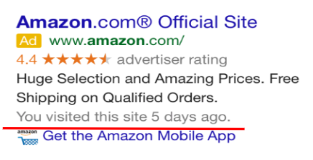
App assets are shown under your main text ad, as illustrated in the image below.
Requirements to Add App Assets
There are a few steps that are required before you can apply app assets properly to your accounts.
- You or your client must have an application that is up and running on either the Google Play Store or the Apple App Store.
- You need the app ID for iPhones or Apple devices (which use iOS) or the package name for Android devices.
- You need the URL for the page in the app store where potential users can find out more information about your app, or they can click to install the app.
After checking to see if all the requirements from the list above are met, you can add app extensions to your accounts.
How to Add App Assets to Your Google Ads Account
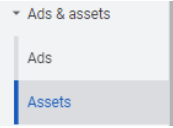
Click the Ads & Assets tab in the page menu on the left, then from the drop-down, select Assets.
The Assets main dashboard will appear. At the top, you will see all the different asset types that you can add to your ads. Select App.
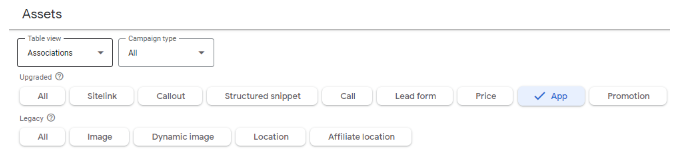
Under Upgraded, select App, then click the blue + button in order to add your app asset. Once you have clicked the button, you will be taken to a page where you can fill out and edit the information for your app asset.
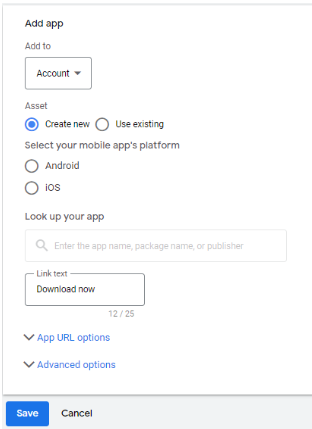
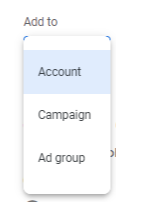
You can also choose if you want to add the app asset on the account level, campaign level, or ad group level.
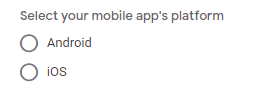
Next, you will select on which platform your app appears. The choice is between Android and iOS.
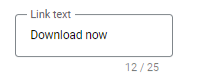
After selecting your app’s platform, you will need to fill out the link text box. We recommend putting a call to action (CTA) here.
Once you have filled out all the required fields, select Save. You are done, and the app asset you have made will be live.
App Assets and Tandem Together Bring Value
Google Ads provides many great assets that you can add to your ads in order to improve your online advertising strategy. Although app assets might not be as commonly used, such as image extensions or structured snippets, they still provide great value. Any PPC specialist should be applying app assets if your client or business has its own application.
But what if you don’t have a PPC specialist at your organization? Don’t worry. The hive at Tandem is here to help. In addition to our PPC specialists, we offer SEO, paid social, creative services, and more. Give us a buzz today and learn how we can make our digital marketing services work for you.