When using Google Ads in your PPC Advertising efforts, there are many resources provided by Google to increase the visibility and click-through rate (CTR) of your ads. Some of these are called Assets, and one of these is Callout Assets, formerly known as Extensions.
Callout Extensions or Assets allow advertisers to add short snippets of copy that appear below an ad’s description text on both desktop and mobile devices. These Callout Extensions can be used to give users more information about the products and services that your business offers.
For example, you can use Callout Extensions to tell users your business offers “24/7 phone support,” “free shipping,” or “timely reorder reminders.”
Benefits of Callout Extensions
Highlight what your business offers: You can promote unique or popular aspects of your business in a few words.
Update without changing your ads: You can change the text in your Callout Extensions whenever you like to keep your ads up-to-date with special offers and sales without needing to tweak your ad.
Increase click-through rate: Callout Extensions can be used to increase the click-through rate (CTR) of your ads. These extensions help increase CTRs because they make your ad take up more real estate in the search results. Depending on character spacing, browsers, and the device you’re using, up to ten Callout Extensions can be visible at one time.
Increase Quality Score: A key component of a keyword’s quality score is ad relevance. A higher quality score results in a higher ad ranking and lower costs per click. Callouts can help increase your ad relevance which will help increase your quality score.
Callout Extensions Requirements
There are two requirements for using Callout Extensions:
- Callout Extensions can only be added to Search Network campaigns that have opted into the Display Network.
- The text in a Callout Extension is limited to 25 characters in total.
Steps to Create Callout Extensions
Step 1
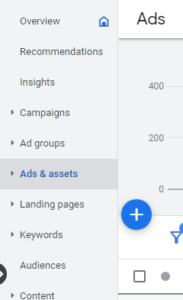
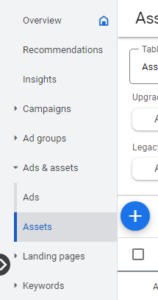
In your Google Ads account, select “Ads & assets” and then select “Assets.”
Step 2
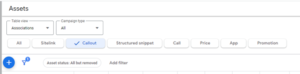
From the Assets options, select “Callout.”

Step 3
Click the “+” sign.
Step 4
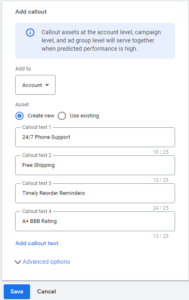
From the drop-down menu, use the down arrow next to “Add to” and select whether to add the Callouts at the Account, Campaign, or Ad Group level.
Step 5
Add the Callout text and click “Save.”
Best Practices When Creating Callout Extensions
- Assign Callouts to the Account Level First: This will give you optimal coverage sooner. When assigning Callouts to the account level, make sure they are all relevant to all your ads.
- Provide General Information About Your Business: If adding Callouts to the account level, provide information that is applicable to your entire business. Provide more specific information when adding Callouts at campaign and ad group levels.
- Keep The Text Short: Keeping text short means more Callouts can show in your ads. For example, you can try “Free Shipping” instead of “We Have Free Shipping.”
- Be Specific: Provide detailed information to ensure your potential customers can decide if your business has what they are looking for. For example, use “Over 40 Years Experience” instead of “Experienced Movers.”
Wrapping Up Callout Extensions
Callout extensions are an easy, effective, and free way to increase the click-through rate of your ads and lower your cost per lead. This is done by enticing users with more information that is relevant to your business.
Google offers a variety of ad extensions to help increase the effectiveness of your ads, such as Sitelink Extensions. You can see all of the ad extensions Google currently offers here.
If you want to learn more about Callout Extensions or the vast services that Tandem provides, give us a buzz. We know PPC, SEO, reputation management, and more like the backs of our hands. Let our hive work for you!